¶ Scenarios in Moduverse
In Moduverse, a Scenario is essentially an assembly of separate, isolated Modules combined and placed into a meaningful context.
Scenarios allow Worlds, GameModes, Characters, Spawnable content, and other Modules to work together seamlessly, defining how a playable experience is structured.
They provide the framework that tells the game which Modules to load, how they interact, and how players experience them, making it possible to create flexible, dynamic, and reusable gameplay experiences.
Scenarios act as the glue that holds individual Modules together, making them usable and interactive within Moduverse.
To create new Scenarios, use the integrated Scenario Editor.
¶ Scenario Editor
The integrated Scenario Editor in Moduverse is a tool that allows Scenario Creators to build and configure new Scenarios.
To access the Scenario Editor, open the Moduverse Overlay and navigate to the Moduverse Panel.
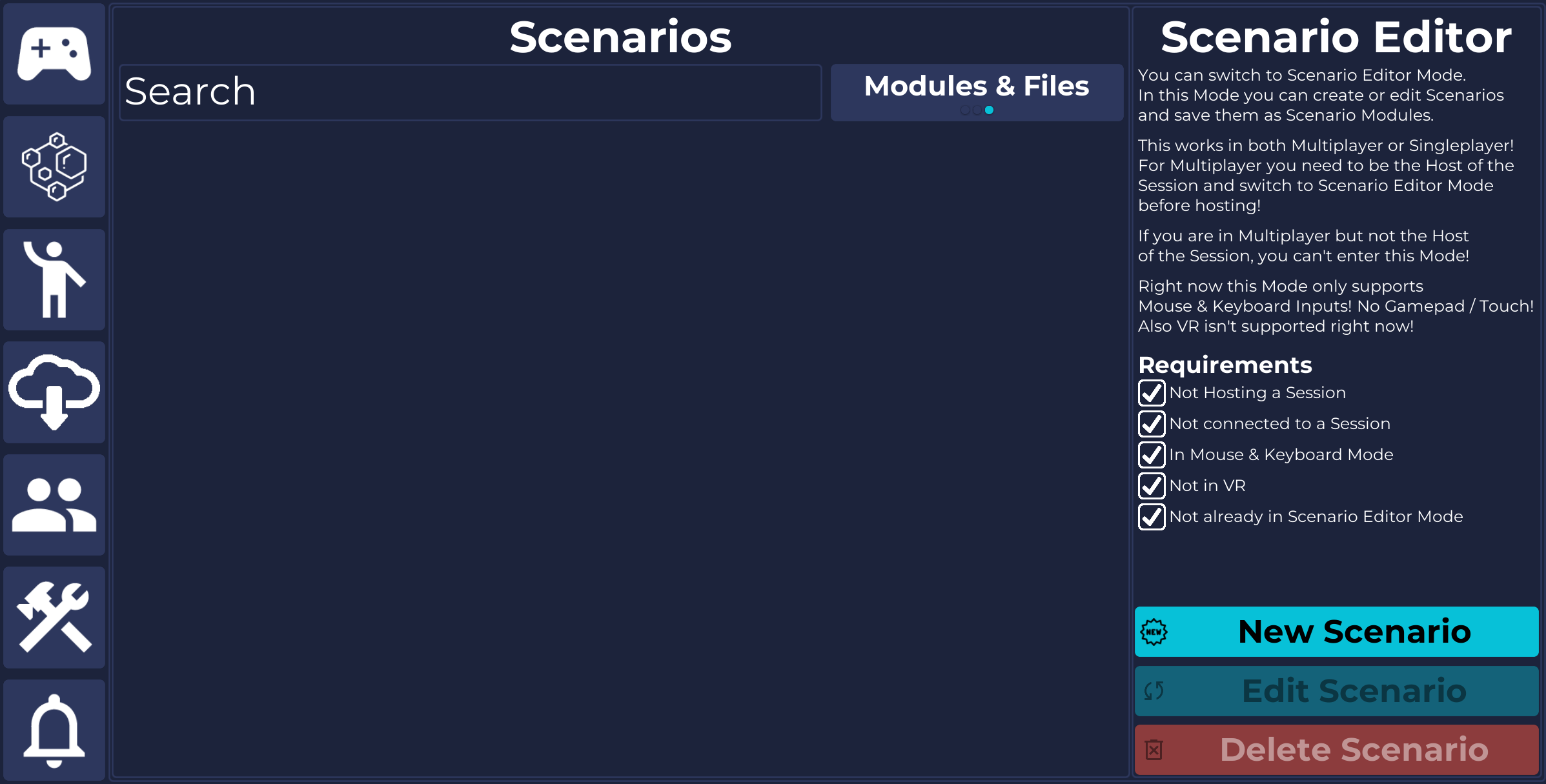
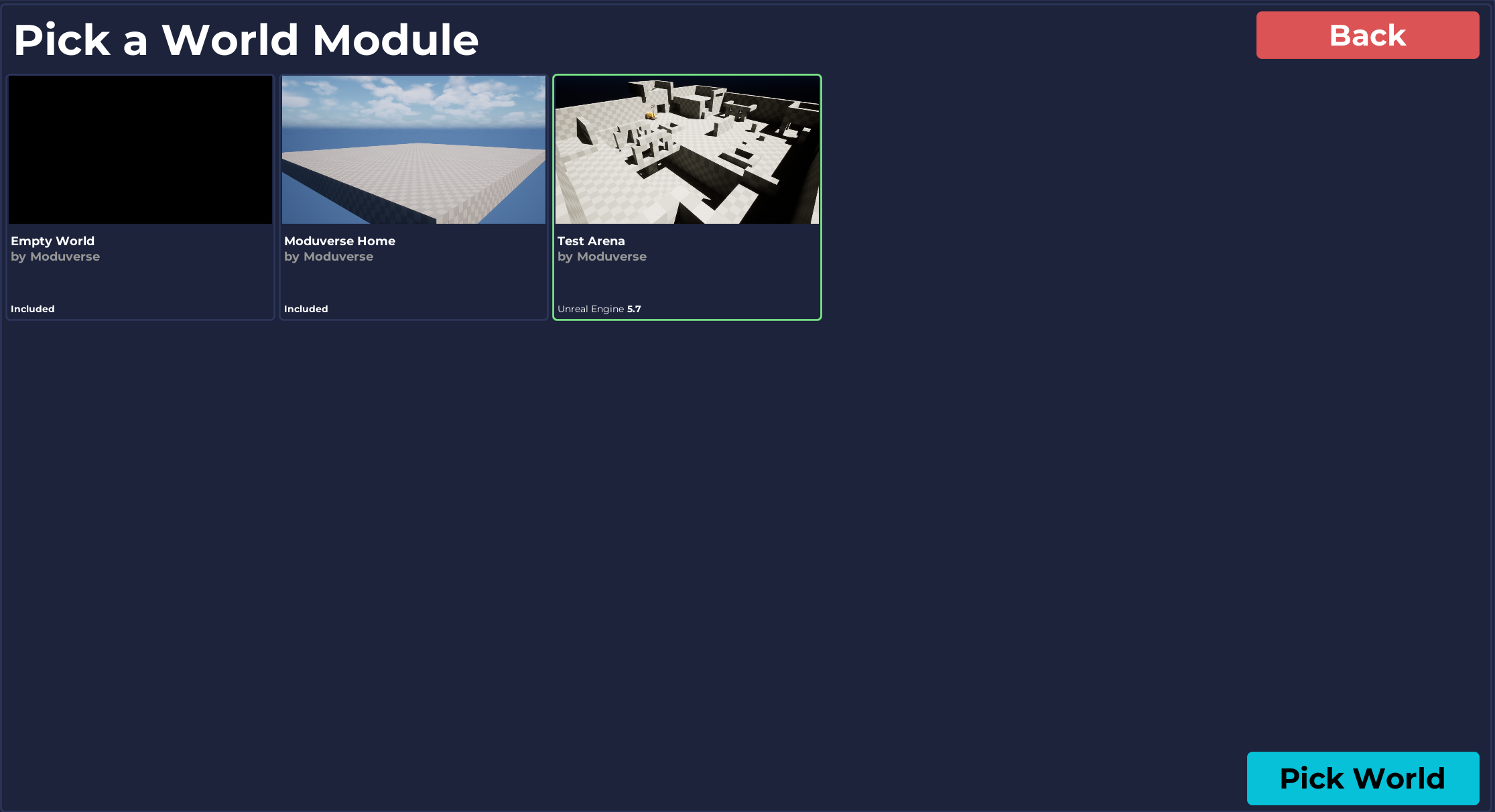
After clicking New Scenario, you will be prompted to select a World Module.
If a specific World Module is missing from the list, make sure you have downloaded a version of it from the Module Store beforehand.
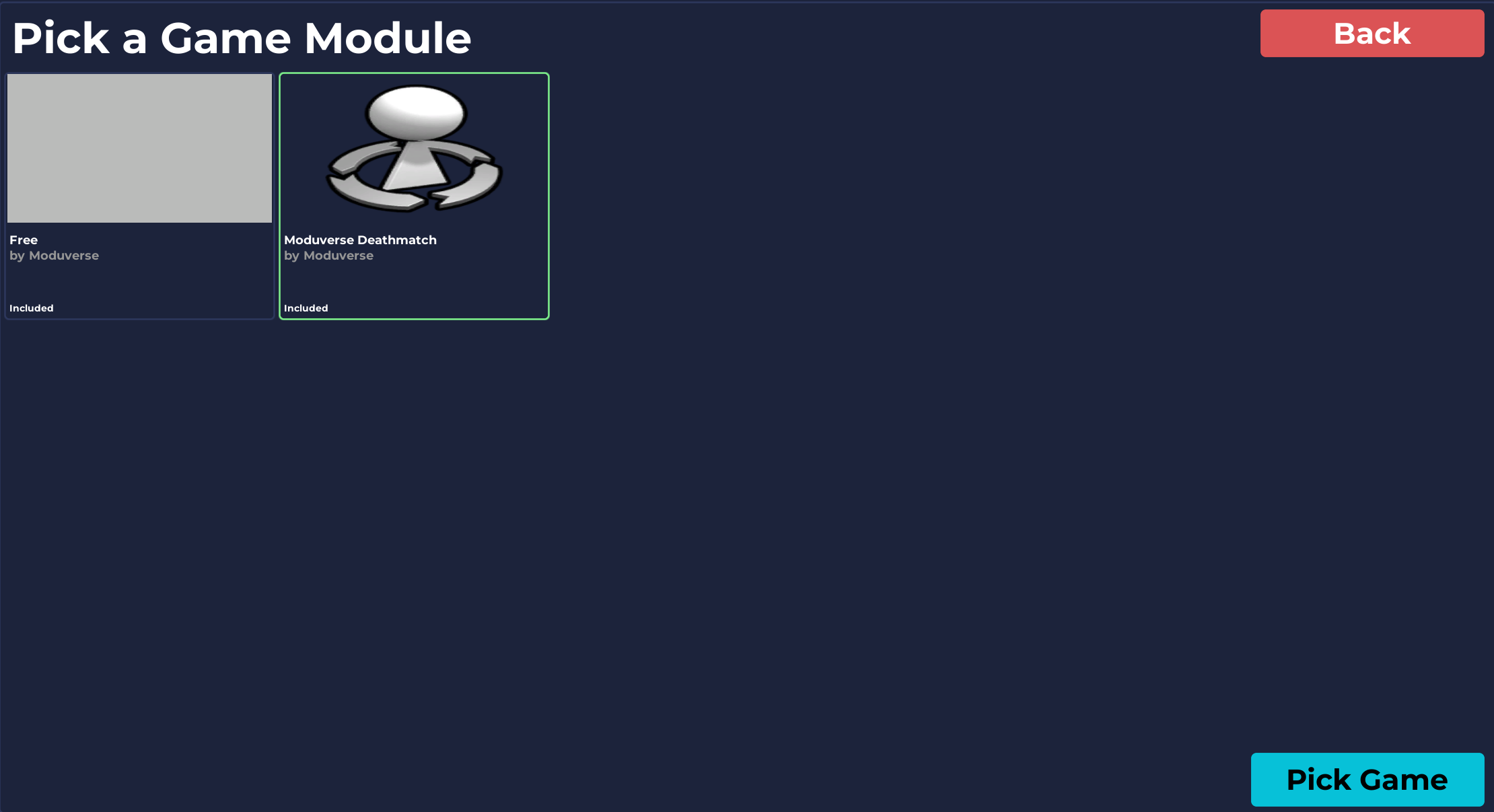
If the selected World Module has an overridable GameMode, or none at all, you will next be prompted to choose the GameMode Module you want to use for the Scenario.
After confirming your selection, the World Module along with the chosen GameMode Module will be launched.
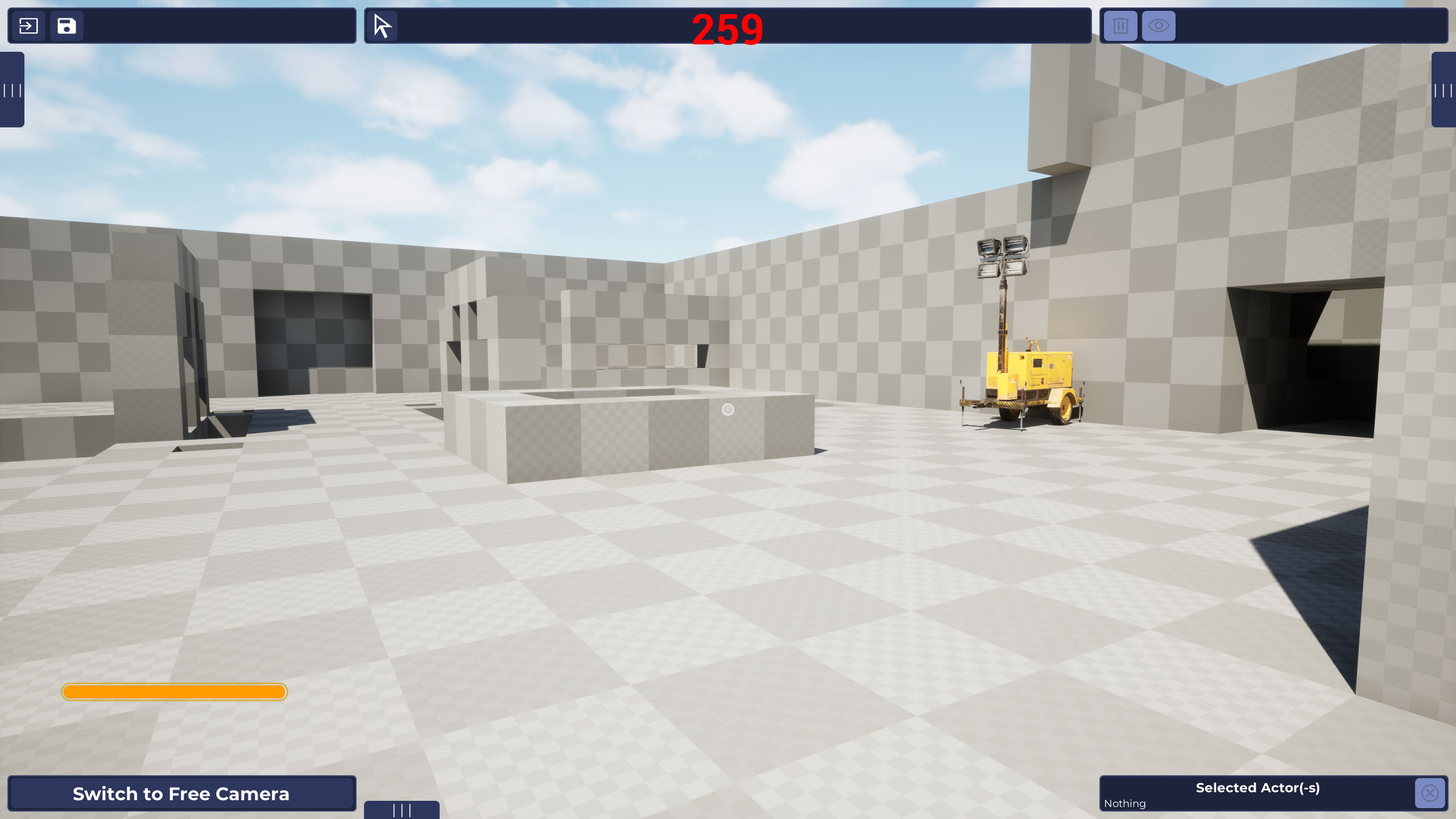
You are now actively playing the GameMode, while also being in Scenario Editor Mode, which can be easily recognized by the additional UI elements on your screen.
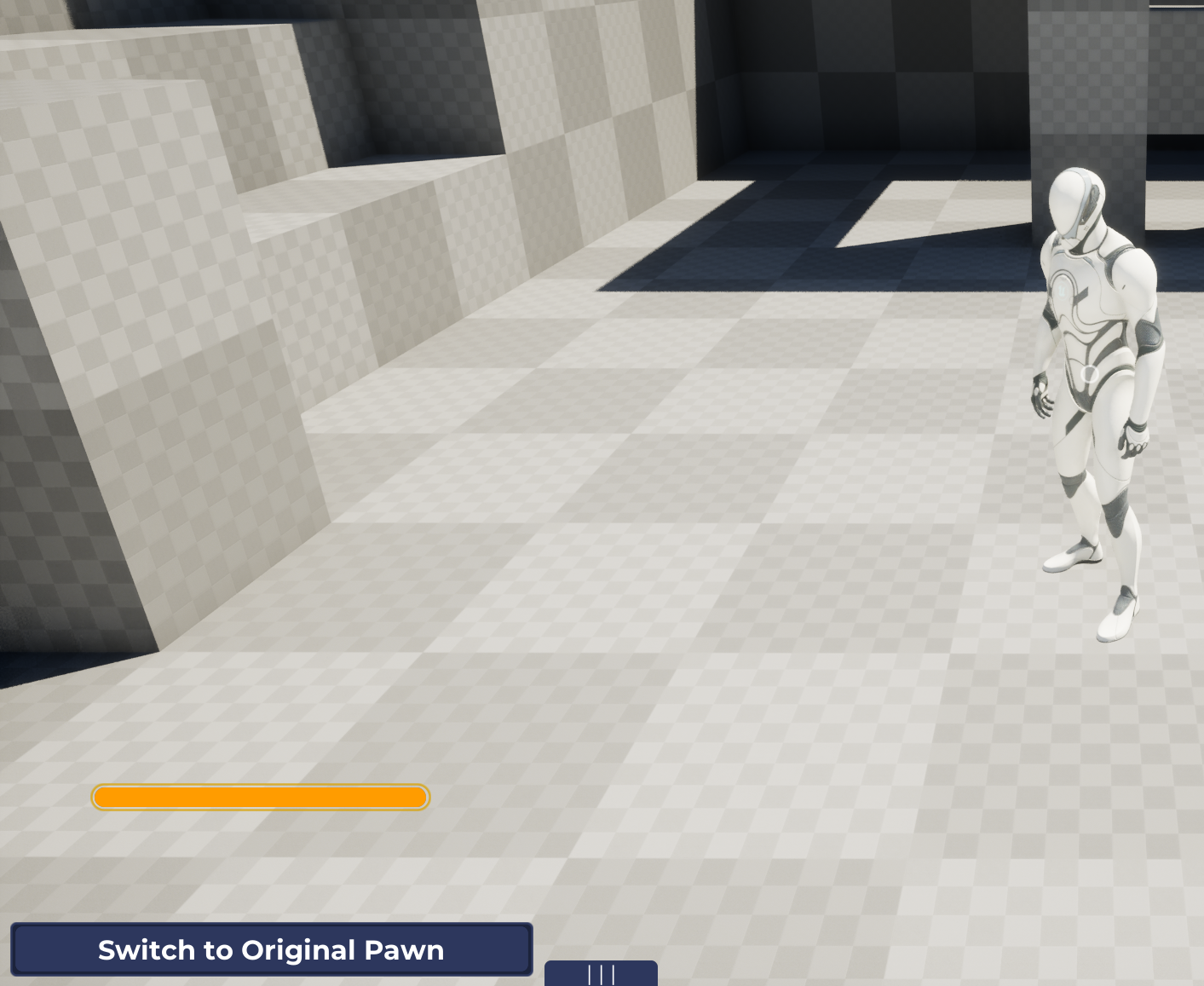
In the bottom-left corner, you will see a button labeled “Switch to Free Camera”.
Clicking this button switches from the regular gameplay camera to the Scenario Editor’s Free Camera.
You can use this button at any time to toggle between playing the game and editing the Scenario.
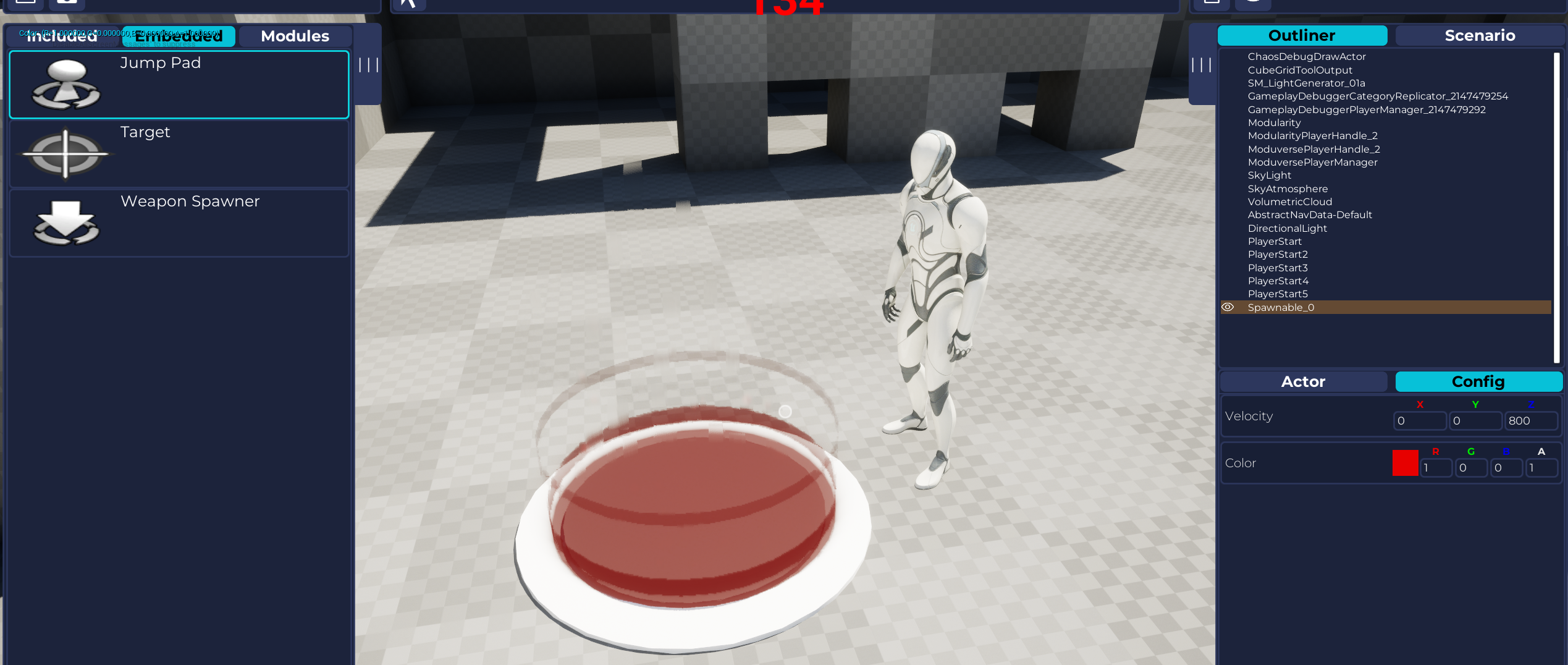
While using the Scenario Editor Camera, you can select a Spawnable (e.g., a Jump Pad) from the left-side panel and click in the Scene to place it.
Once placed, you can edit its properties in the right-side panel.
You can only do interactions like these when you are not controlling the GameModes Character, but the Scenario Editors Free Camera!
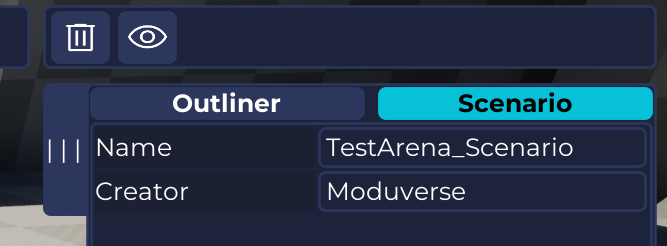
In the right-side panel, at the top where it says Scenario, you can edit the information for this Scenario.
When you are finished, you can save the Scenario by clicking the Save icon in the top-left corner.
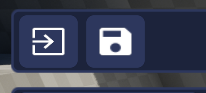
Directly to the left of the Save button is the button to exit the Scenario Editor.
¶ Launching a Scenario
Back in the regular Moduverse, you can launch your newly created Scenario from the Session Panel (the top-most button in the navigation) and then click the Change Scenario button in the bottom-left corner in the Moduverse Overlay.
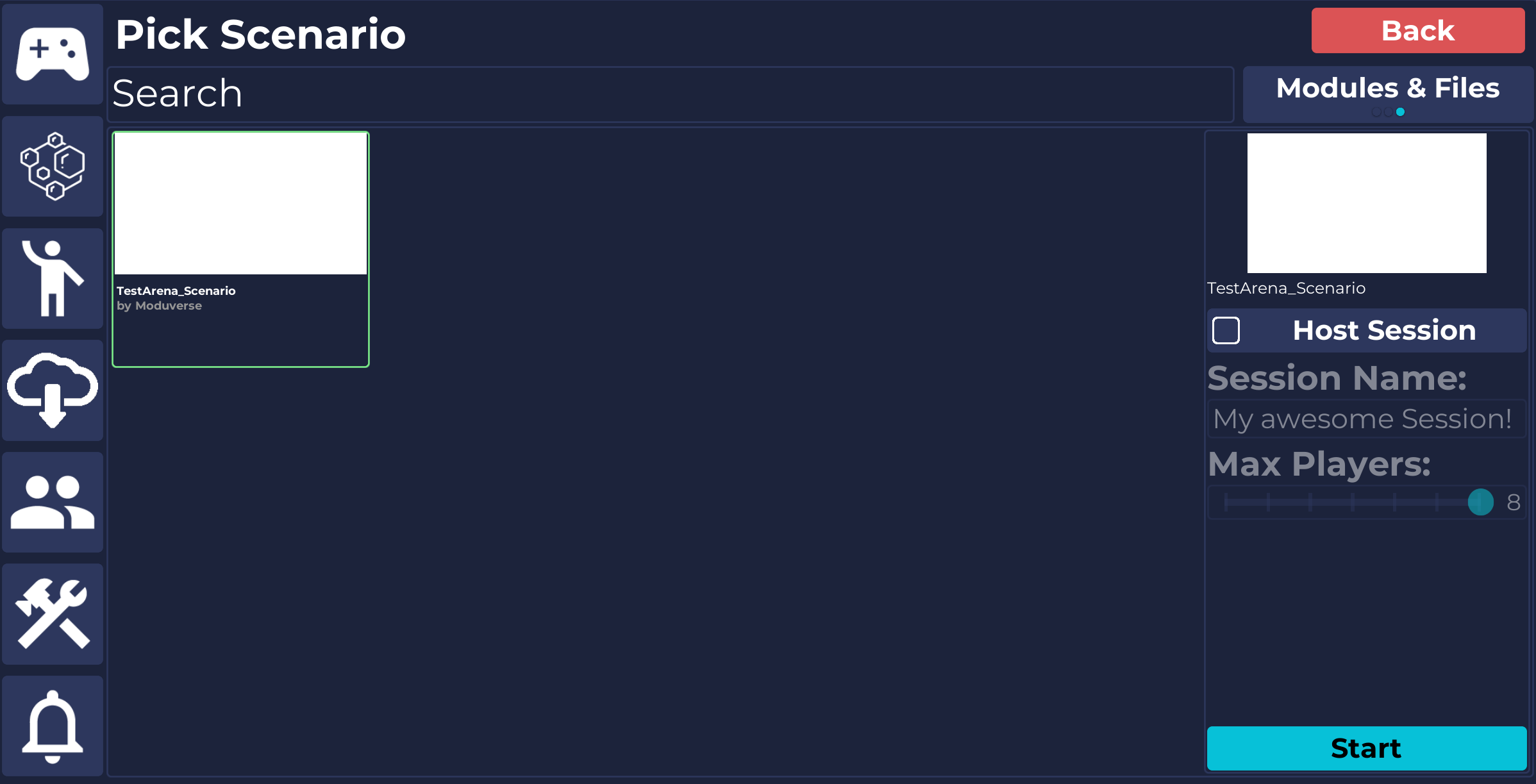
In the panel that appears, select the Scenario you want to launch.
You can also choose to Host a Session so other players can join.
Once your configuration is ready, click the Start button.
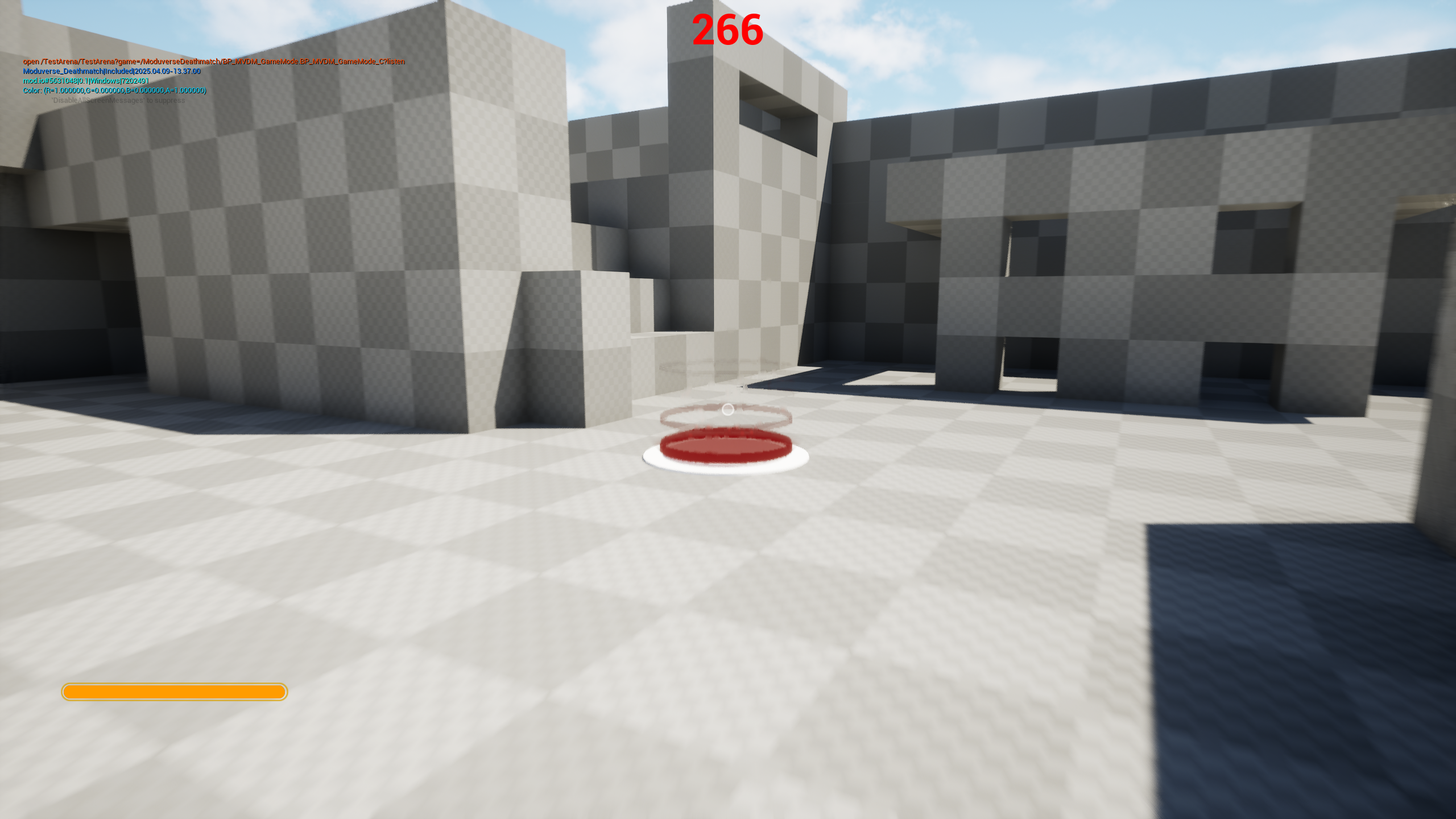
You will now be placed in the actual Scenario, running the World Module and GameMode Module, with all the content and changes you added, modified, or removed in the Scenario Editor applied.
If you chose to Host a Session, other players can now find your session in the Session Browser (Session Panel → Top-Right Corner).
