¶ World Modules
In Moduverse, every playable level is packaged, distributed, and launched as a World Module.
A World Module is a self-contained unit that includes all content required for a player to load and play a specific level. This includes, but is not limited to:
- Static and skeletal meshes
- Materials and textures
- Visual effects (Niagara)
- Sound effects and audio assets
- Any additional supporting assets required by the level, like Blueprint Classes used in the Level, Landscape Layer Assets and so on
The primary content asset of a World Module is its Level asset, which defines the playable environment and serves as the module’s entry point.
¶ Creating a World Module
To create a new World Module, all content for the target world must be contained within a single Unreal Engine Plugin.
Before proceeding, ensure that:
- All assets used by the world reside inside the plugin
- The plugin has no external dependencies or references to project-level or other plugin content
- Exception to that is Engine Content!
- The World Level asset is located within the plugin’s content directory
- This isolation guarantees that the World Module can be packaged, distributed, and loaded independently.
You may create the plugin in a separate Unreal Engine 5.7 project and then bring it over into the ModuverseSDK Unreal project. Verify that the plugin behaves as expected, as differences in project settings or configuration files can affect functionality.
If your content is not yet contained within a plugin, follow the steps in the next section. Otherwise, you can skip ahead to the next part of the workflow.
¶ Plugin Creation
To begin creating a World Module, first launch the Moduverse SDK.
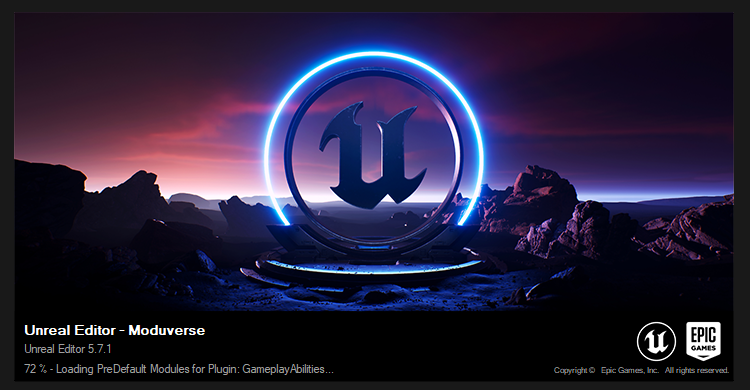
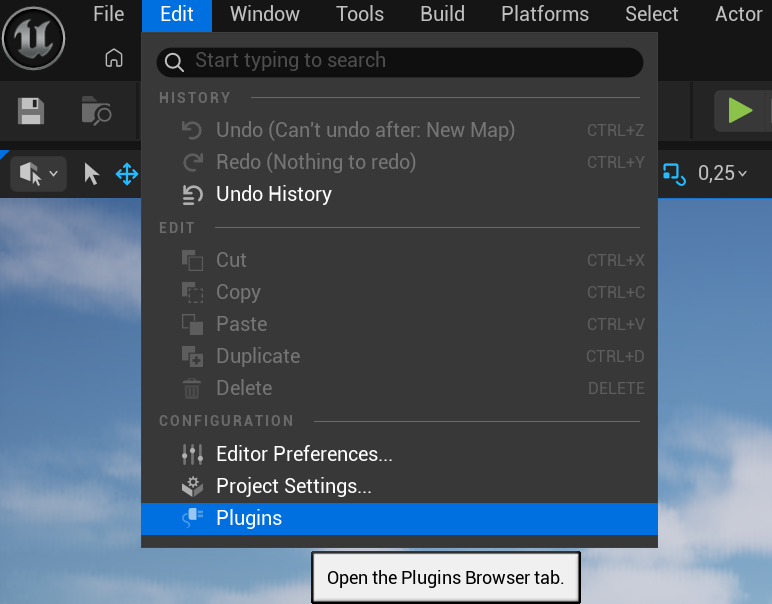
World Modules are built on top of Unreal Engine plugins. To create one, open the Plugins Browser from the editor.
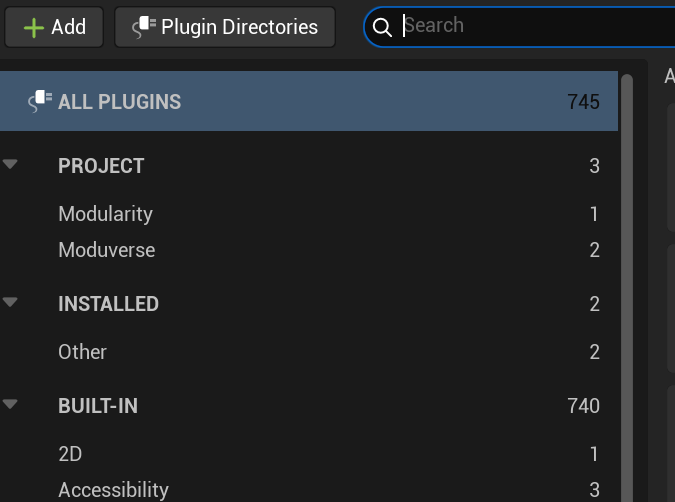
In the Plugins Browser, click the Add button in the top-left corner of the window to create a new plugin.
From the plugin template selection, choose Content Only.
Enter a descriptive and unique name for your plugin. Avoid generic names to ensure better clarity and compatibility.
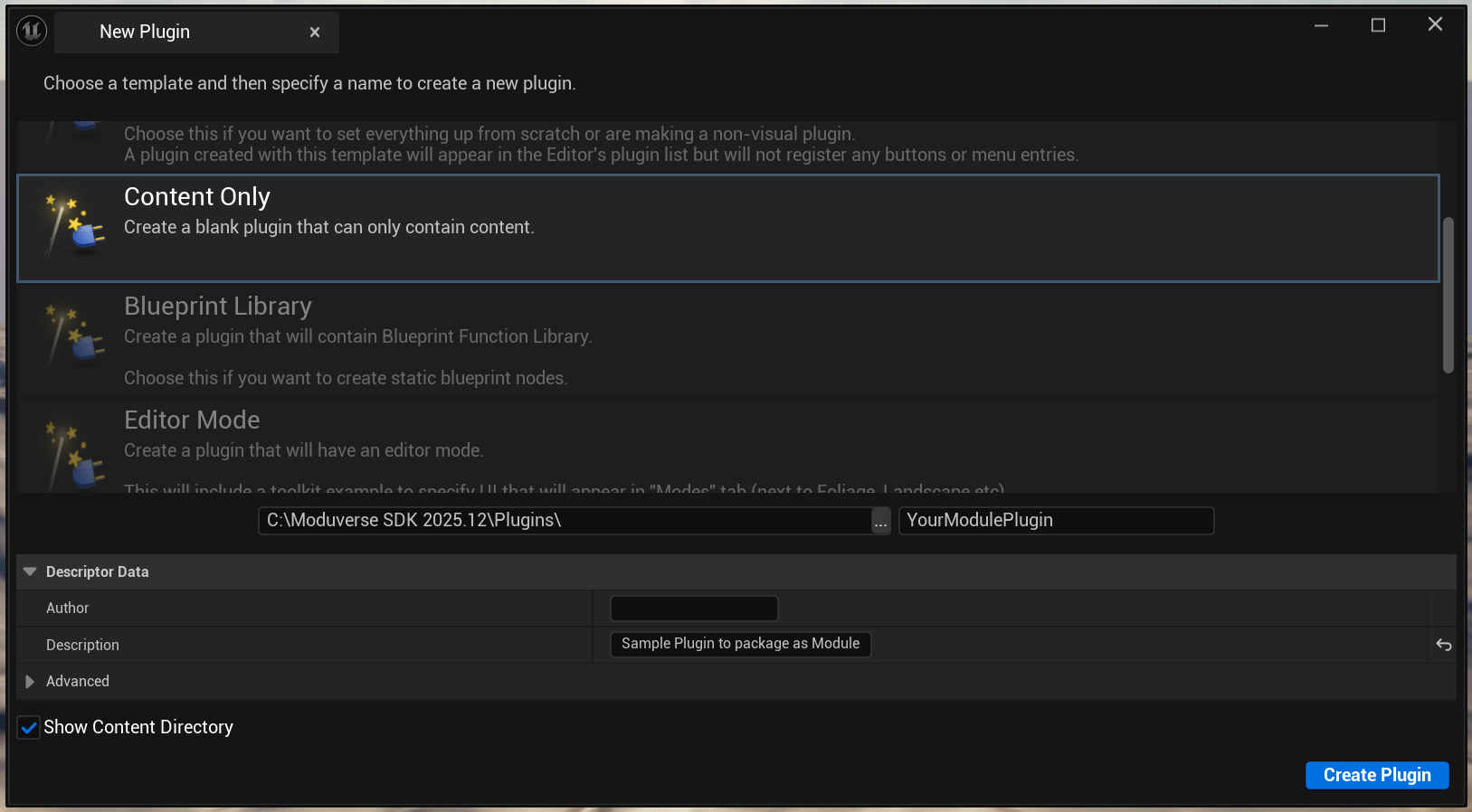
Click Create Plugin in the bottom-right corner of the window. Unreal Engine will generate the plugin and add it to the project automatically.
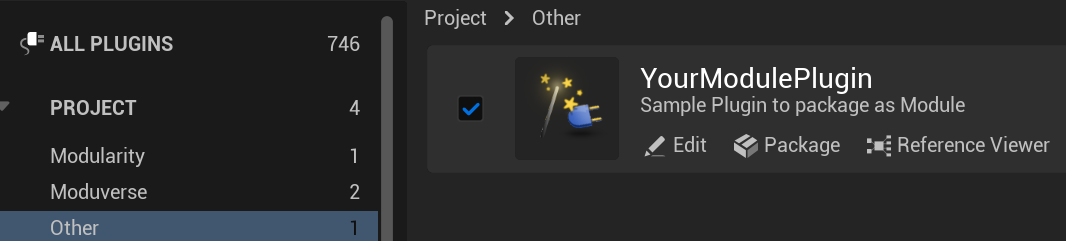
Optional: Edit Plugin Metadata
After the plugin has been created, you may click the Edit button on the newly created plugin to adjust metadata such as the plugin description or thumbnail.
Note: This information is used only for organizational purposes within the editor and has no impact on the World Module itself.
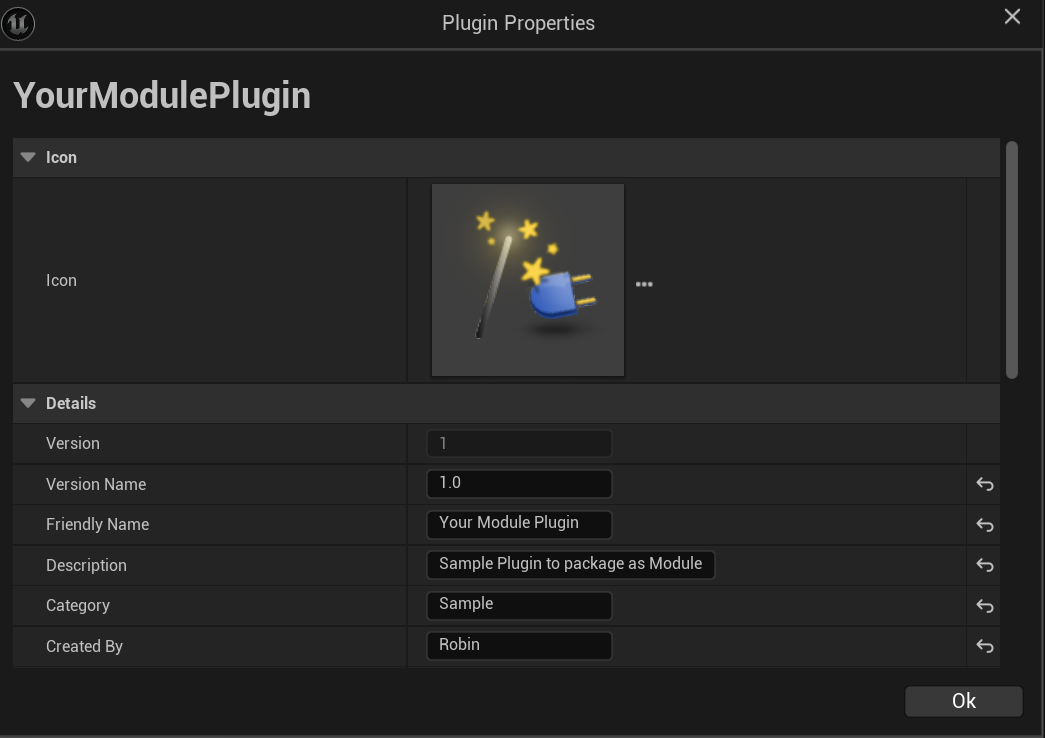
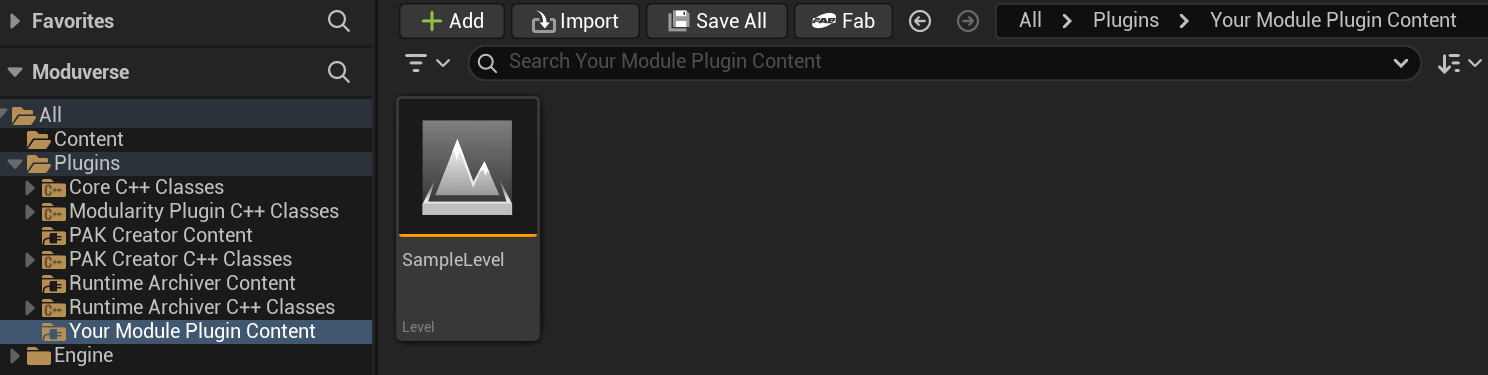
Once the plugin is created and configured, ensure that all content required by the World Module is placed inside the plugin’s Content directory.
This includes the World Modules Level asset and any assets referenced by it.
¶ Packaging a Module
Once your plugin is ready for packaging, open the Moduverse SDK window by clicking the ModuverseSDK toolbar button in the Unreal Editor.
All plugins available in the ModuverseSDK project are listed on the left side of the ModuverseSDK window.
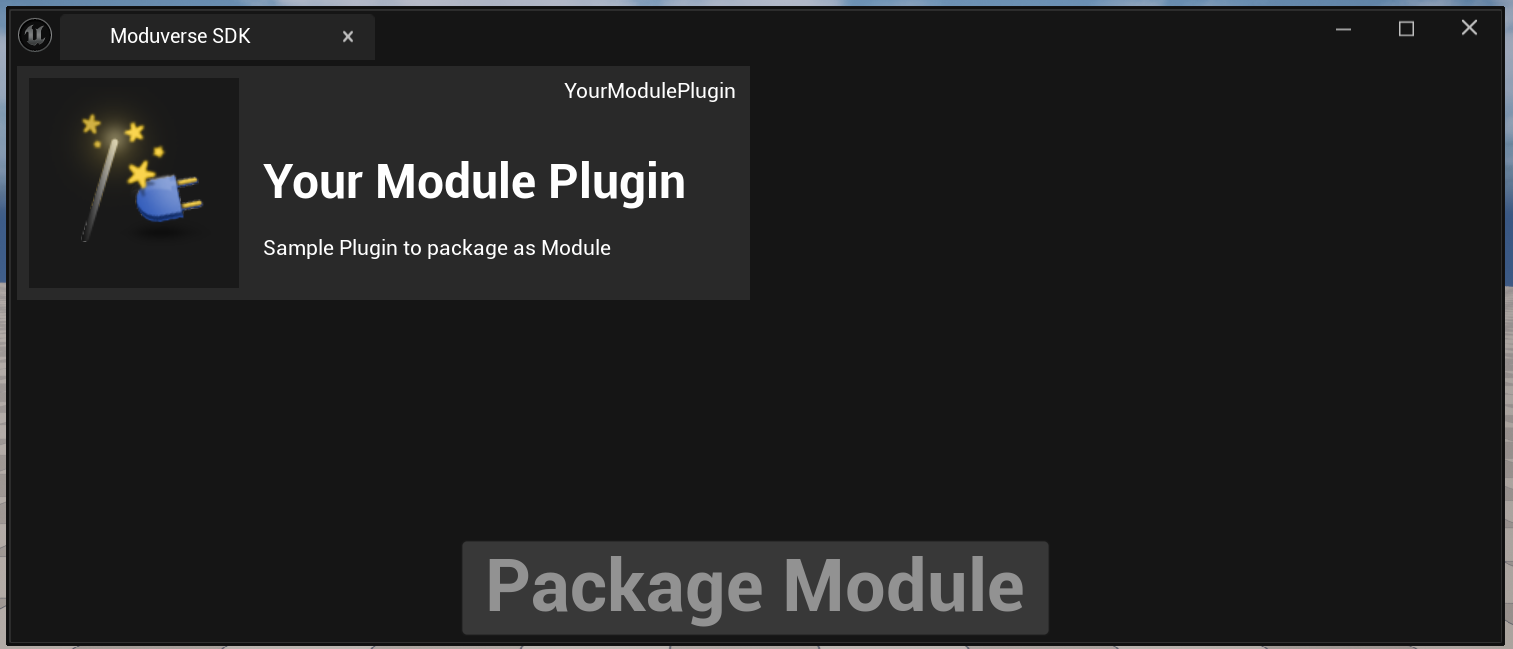
Select the plugin you want to package as a World Module by clicking on it.
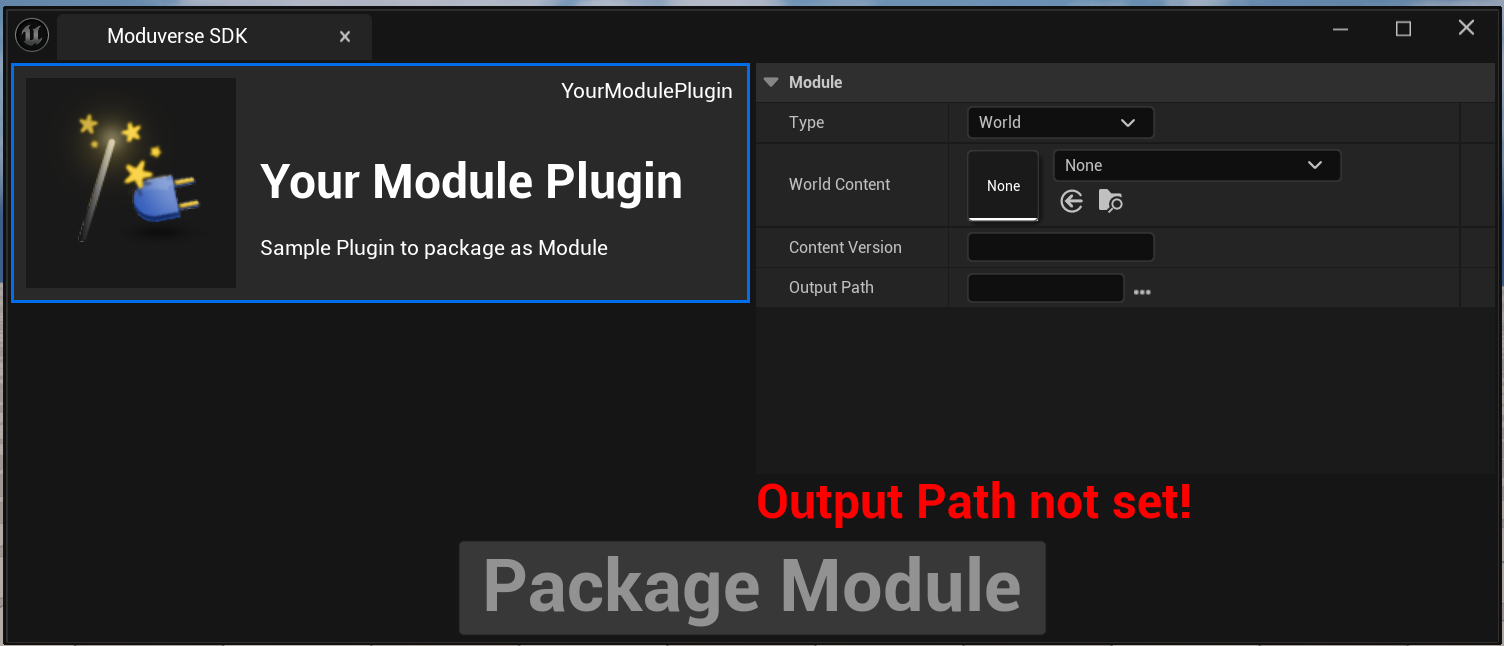
¶ Configure Packaging Settings
With the plugin selected, configure the following settings:
- Module Type
Set this to World, as you are packaging a World Module. - World Content
Assign the Level asset located inside your plugin that represents the playable world. - Content Version
Enter a version identifier for the module.
Numerical, incrementing versioning is recommended (e.g.1.0,1.1,2.0). - Output Path
Choose a directory on your local machine where the packaged output will be generated.
Once all required fields are set, the Package Module button becomes enabled.
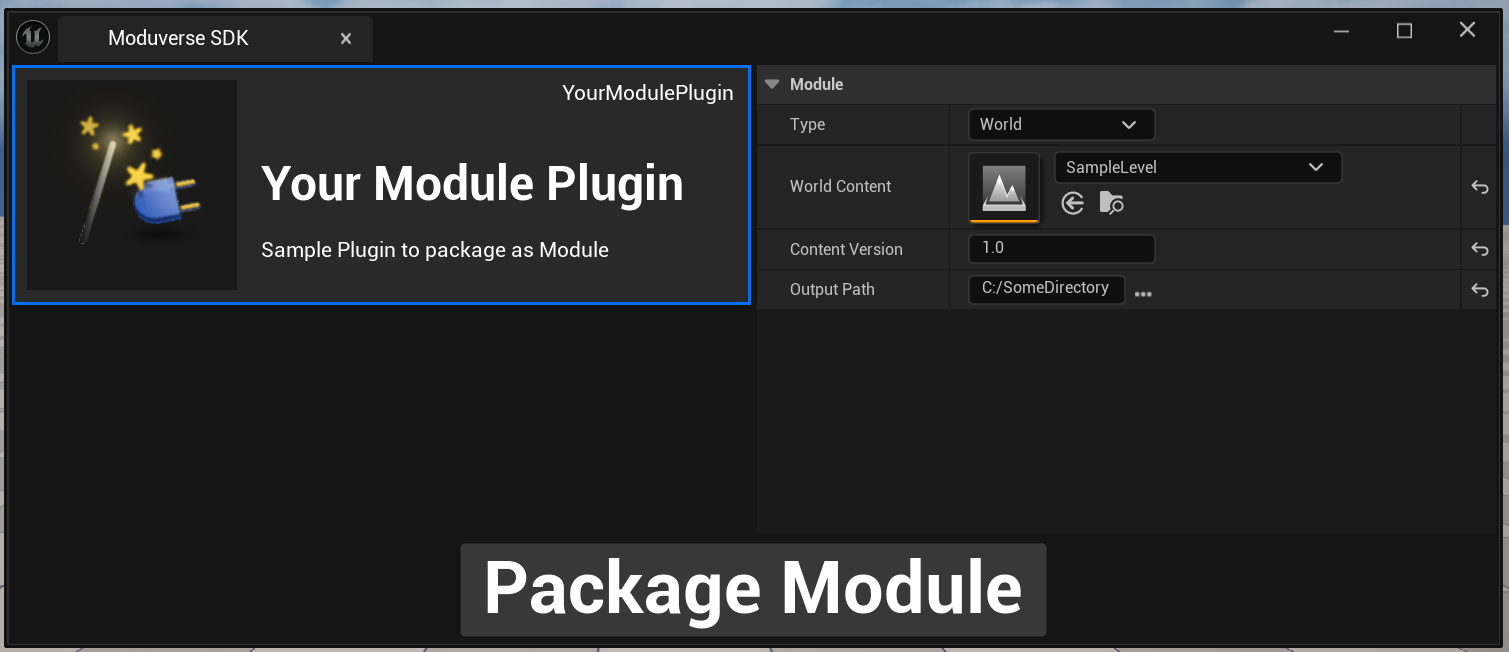
Click Package Module to start the packaging process.
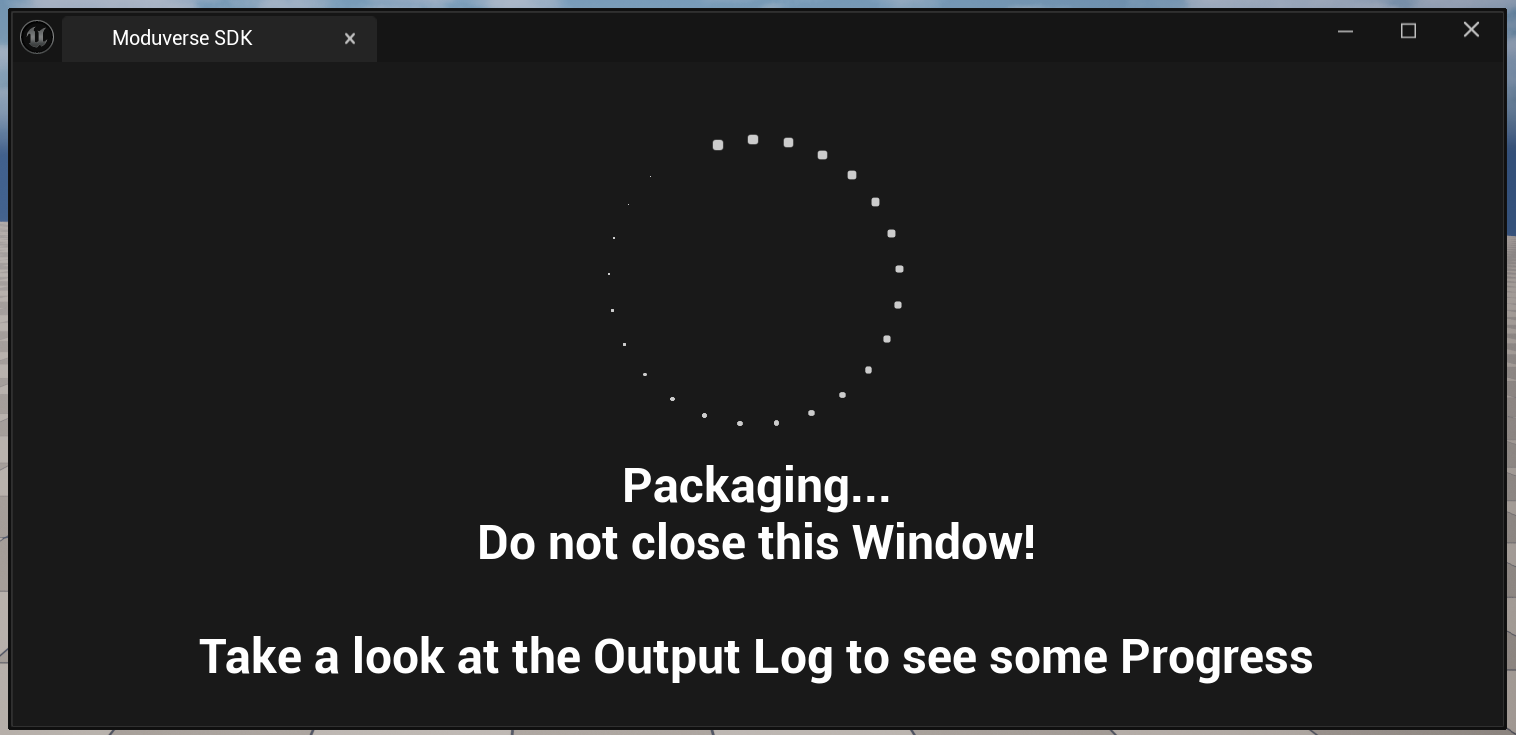
The ModuverseSDK window will indicate that the process has started. All detailed progress and status messages are written to the Unreal Output Log.
To open the Output Log, navigate to:
Window → Output Log
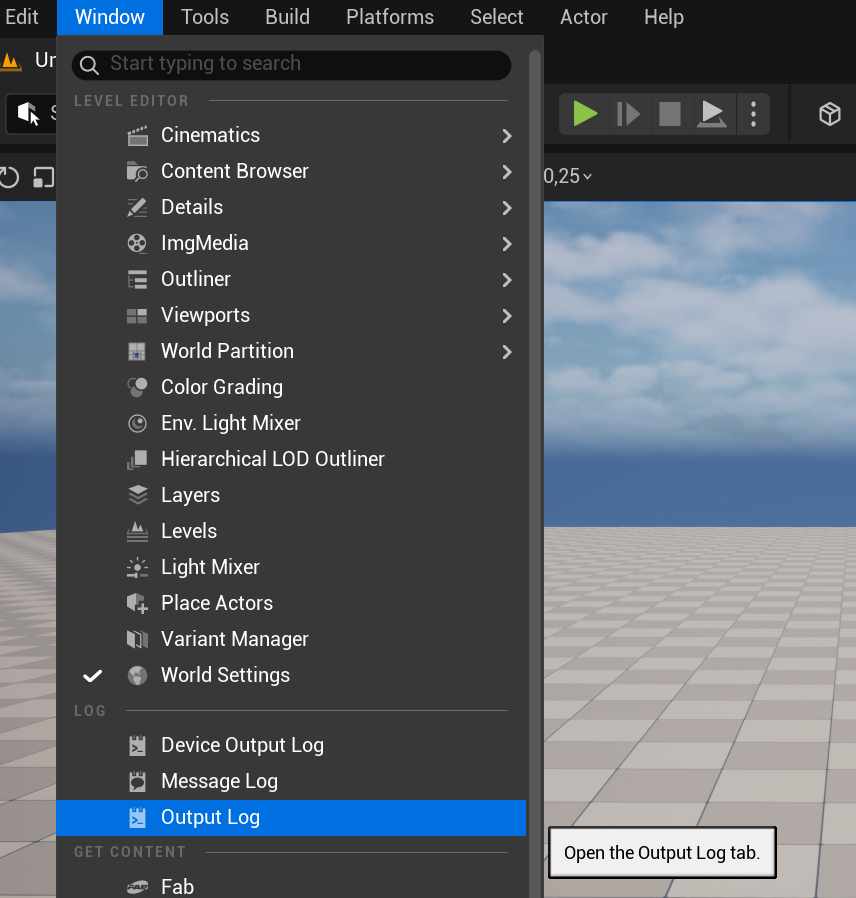
The packaging process may take some time, depending on the size and complexity of the Content.
Once completed successfully, the Output Log will display a BUILD SUCCESSFUL message.

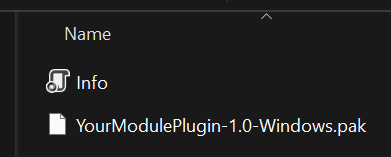
The packaged World Module is now available in the output directory you specified earlier and is ready for further use within Moduverse.
¶ Creating a World Module from Packaged Content
Once the content for your World Module has been packaged, you can proceed to create the Module itself using the packaged content.
For detailed instructions on creating a module from your packaged content, see Creating a Module from Packaged Content.
¶ Workflow Video
For a visual overview of the entire process, you can watch the following video, which demonstrates the full workflow from creating a plugin to packaging and creating a World Module:
<ToDo>
This video provides step-by-step guidance and illustrates the workflow described in this documentation.